
How to Connect Your Mobile to PC Via Xender Web – Step by Step Guide 2026
Sometimes you want to quickly transfer data from your Mobile to a PC, but you don’t want to install any software because of low storage space. This is where Xender Web becomes really useful. It allows you to use Xender APK directly from your browser without installing anything on your PC. You just open the website, connect your phone, and start transferring files instantly. It works well for quick tasks like sending photos, documents, or even larger files when you don’t want to deal with downloads or setup.
In this guide, you will learn exactly how to use Xender Web step by step. In the end, you will know when to use Xender Web and how to get the best results.
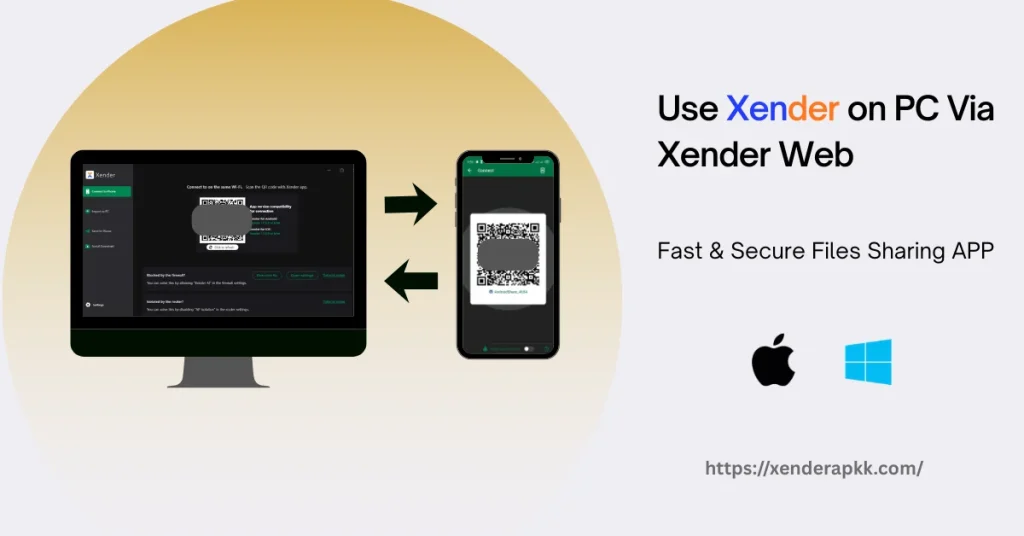
What is Xender Web?
Xender Web is the browser-based version of Xender that helps you transfer files between your phone and PC without installing any software. You simply open the Xender website on your computer and connect your phone using a QR code. You will probably use it when you need a quick transfer and don’t want to install anything. For example, if you are on a friend’s laptop or a work computer, Xender Web lets you send files instantly without any setup. It provides a simple, fast experience in your browser.
How to Connect Android to Xender Web – Step by Step
Step 1: Open your browser on PC and go to the Xender Web.
Step 2: Open the Xender APK on your phone
Step 3: Tap on Connect to PC
Step 4: Scan the QR code shown on your PC screen
Step 5: Wait for the connection to complete
Step 6: Select the files you want to transfer
Step 7: Start sending files instantly
How to Connect iOS to Xender Web – Step by Step
Step 1: Open your computer browser and visit the Xender Web link.
Step 2: Launch the Xender app on your iPhone.
Step 3: In the app, look for the “Connect to PC” option and tap it.
Step 4: Choose the option to scan a QR code using your iPhone camera.
Step 5: Point your phone at the QR code shown on your PC screen and let it scan.
Step 6: Give it a moment — your iPhone and PC will connect automatically.
Step 7: Once connected, you can pick any files from your iPhone and send them directly to your computer.
Why People Use Xender Web Instead of the App?
The first major reason is that you don’t have to download or install anything on your PC. Just open the website and start using it without any setup. Secondly, you can start transferring files in seconds without going through setup steps. Moreover, Xender Web works with almost all browsers, including Chrome, Edge, and Safari. So you don’t have to worry about compatibility.
Main Features of Xender Web
Instant File Transfer
You can send files from your phone to PC in seconds without waiting.
No Internet Required
You don’t need mobile data or Wi-Fi; it works with a direct connection.
Supports Multiple Files
You can transfer photos, videos, apps, documents, and more easily.
Simple Interface
Everything is easy to understand, so you won’t feel confused while using it
No Software Required
You don’t have to install anything on your PC, just use your browser.
Works on All Browsers
You can use Xender Web on Chrome, Edge, Safari, or any modern browser without issues.
Users FAQs
Conclusion
In conclusion, Xender Web is a great option for quick file transfers without installing anything. It’s simple, fast, and works well for everyday use, especially when you are on a temporary or shared PC. While it doesn’t offer all the features of the full app, it still provides a seamless experience for instant file transfers.